


How it works
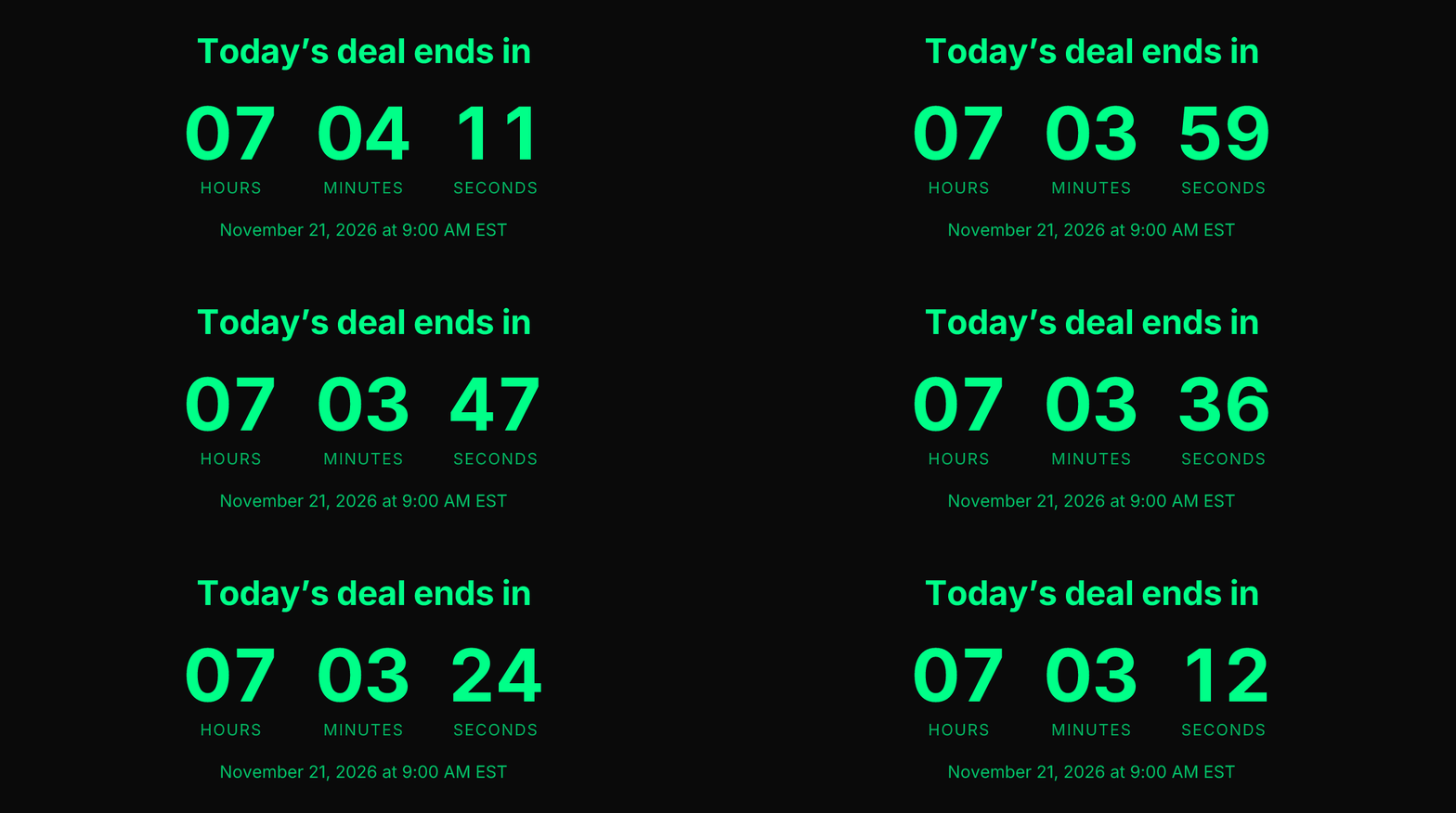
Email apps run no scripts, so a live countdown in an email is a picture: an animated GIF that count.live draws at the moment the email is opened. Its first frame is the time left right then, and it plays from there.
That makes count.live a free countdown timer GIF generator: you set up the countdown once, and it generates a fresh countdown GIF for every open. There is nothing to download or upload, because the GIF is made from its link each time.
- Seconds showing: it ticks every second for a minute, then starts that minute again.
- Minutes as the smallest unit: it changes every minute for half an hour.
- Hours or days only: a single still picture, right at the time it was opened.
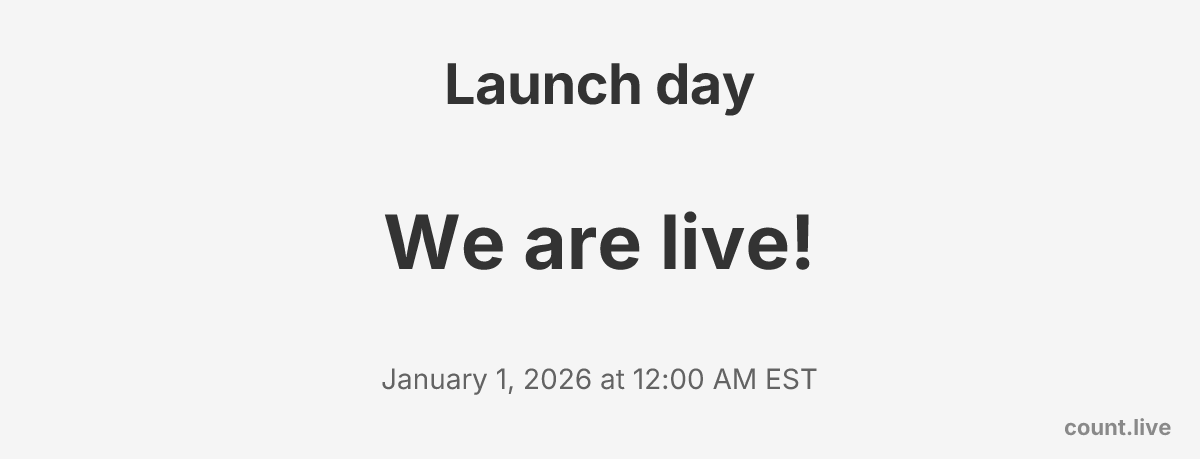
- At zero: it plays down to zero and then shows your end message. Opened after that, it is a still of the message, or the next round of a countdown that repeats.
Three ways to add it
Make a countdown in the builder, go to the Share step and choose Use in an email. Then:
- Writing a message yourself: click Copy picture and paste into the message. This works where a pasted picture keeps its web address, such as Gmail and Outlook on the web. Apple Mail does not: it downloads the picture and attaches that copy, which no longer changes. When you write in Apple Mail, send the countdown’s link instead, or use one of the other two ways.
- Newsletter tools such as Mailchimp, Klaviyo, Brevo, Kit or beehiiv: click Copy picture link, add an image block and give it the link as the picture’s address (often called “from URL”), where the tool offers that. Link the picture to your countdown or your own page.
- An HTML block: click Copy Code and paste it. The code is the picture, linked to your countdown, with a description for readers who don’t load pictures.
Writing the link by hand works too: it is your countdown’s link with email.gif after count.live/. The settings are listed in the link format.
What the picture shows
- Your title and the line under it.
- Your colors, or one of the themes.
- The look you picked: Classic, Big number, Ring, Cards or Glow.
- Your font.
- The picture behind it, if your countdown has one: a ready-made one or your own.
- The progress bar and percentage, if you turned them on.
- The units you chose, from years down to seconds, with the largest left out at zero if you turned that on.
- The date it counts to, under the numbers, in the countdown’s time zone.
- Your end message once it’s over.
- Labels in English, Spanish or Portuguese.
- A small “count.live” in the corner, unless you turned off Made with count.live for the countdown.
Three things differ from the countdown’s page. A countdown set in the Monospace font uses the standard font in email, and Serif is drawn in a display serif. A background picture from your own address is fetched once a day and has to be a JPEG or PNG of at most 3 MB and 6 megapixels; a larger or slower one is left out and the countdown sits on its color. And a picture can’t be see-through: a countdown with a transparent background gets the default dark one.
Fit it to your email
The dialog has the same choices as the Canva one. Shape: as tall as the countdown needs, or a banner, a 16:9 frame, a square or a tall frame, with the countdown made as large as fits. Space around it: standard, a little, or none. Hide the labels under the numbers, for when your email says “days, hours, minutes” itself. Leave out the title, the subtitle or the date, down to the numbers alone. And the width, from 240 to 900.
A date for each reader
Because the picture is only a link, your email tool can fill in part of it. Put the tool’s field for a date where the date goes, for example date={{trial_end}} (written the way your tool writes fields), and each reader gets a countdown to their own deadline. The date has to arrive in the form 2027-03-09T18:00:00Z.
Good to know
- Gmail and Yahoo Mail fetch the picture again every time the email is opened, so those readers always see the time left right then.
- Apple Mail fetches an email’s pictures once, often before the email is opened, and keeps that copy. Its readers see the count from that moment, however often they reopen the email.
- If many of your readers use Apple Mail: count in days and hours rather than seconds, so a picture fetched early is still right when it is read, and keep the date in the picture. The date is there by default for exactly this reason.
- Mail apps that don’t animate: an app that shows only a GIF’s first frame still shows the right time left at the moment of opening; it just doesn’t tick.
- Pictures turned off: readers who don’t load pictures see the description, such as “Countdown to New Year”, and can follow the link.
- Size: 600 wide by default and sharp on phones; the dialog lets you set another width and shape.
- One copy per reader: if your email tool has a field that is different for every reader, you can add it to the end of the picture link as
&r=and the field. The picture ignores it, and no mail service can then show one reader a copy it kept for another.
Price and privacy
The email countdown timer and the GIFs it generates are free: no account, no trial, and no limit on how many emails use them or how often they are opened. Nothing about a countdown is stored: the picture is made from its link each time. Opening the picture sets no cookie and count.live keeps nothing about your readers; it only counts how many pictures are drawn. Details are in the privacy policy.
Frequently asked questions
How do I add a countdown timer to an email?
Make a countdown on count.live, choose Use in an email in the Share step, and paste the picture into your email: straight into a message, as a picture link in an image block, or as code in an HTML block. The picture shows the time left when the email is opened.
Is the countdown timer GIF generator free?
Yes. Generating countdown GIFs for email is free, with no account, no trial and no limit on how many emails use them. The small count.live in the corner can be turned off, also for free.
How do I make a countdown GIF for an email?
Set the date, title and colors on count.live, then choose Use in an email in the Share step. The link it gives you is the GIF: count.live generates it anew each time the email is opened, so there is no file to download.
How can a countdown be live in an email?
It is an animated picture drawn at the moment the email is opened. Its first frame is the time left then, and it ticks from there. Email apps run no scripts, so every email countdown works this way.
Does the countdown update every time the email is opened?
In Gmail and Yahoo Mail, yes: they fetch the picture again at every open. Apple Mail fetches it once, often before the email is opened, and keeps that copy, so its readers see the count from that moment. For them, count in days and hours rather than seconds and keep the date in the picture.
What happens when the countdown ends?
The picture shows your end message instead of the numbers. It never expires or breaks. A countdown set to repeat counts to its next date.
Can every reader get their own deadline?
Yes. Put your email tool’s date field into the picture link where the date goes, and the tool fills it in for each reader.
Can I remove count.live from the picture?
Yes. Turn off Made with count.live for the countdown in the builder, and the picture leaves it out too.